 ChromaBoard
Turn two devices into one ChromaBoard display
Use one iPhone or iPad to control a scrolling sign while another device displays the rest of it.
For iPhone and iPad · 0.1.9
Steps
Create a display on the first device
Connect both devices to the same Wi-Fi network. Set up your message on the first device, open Multi-screen from the editor toolbar, select LAN mode, and choose the host option.
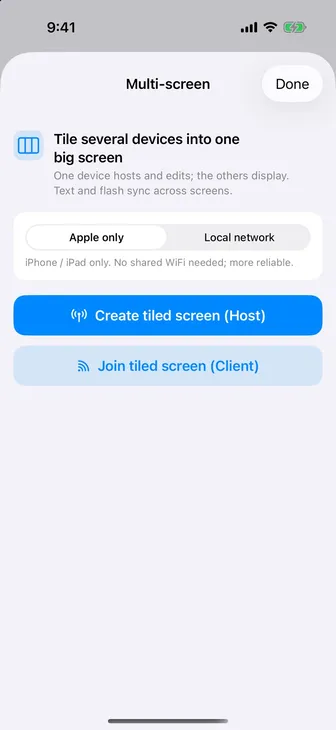
The setup screen has options to create or join a display Join from the second device
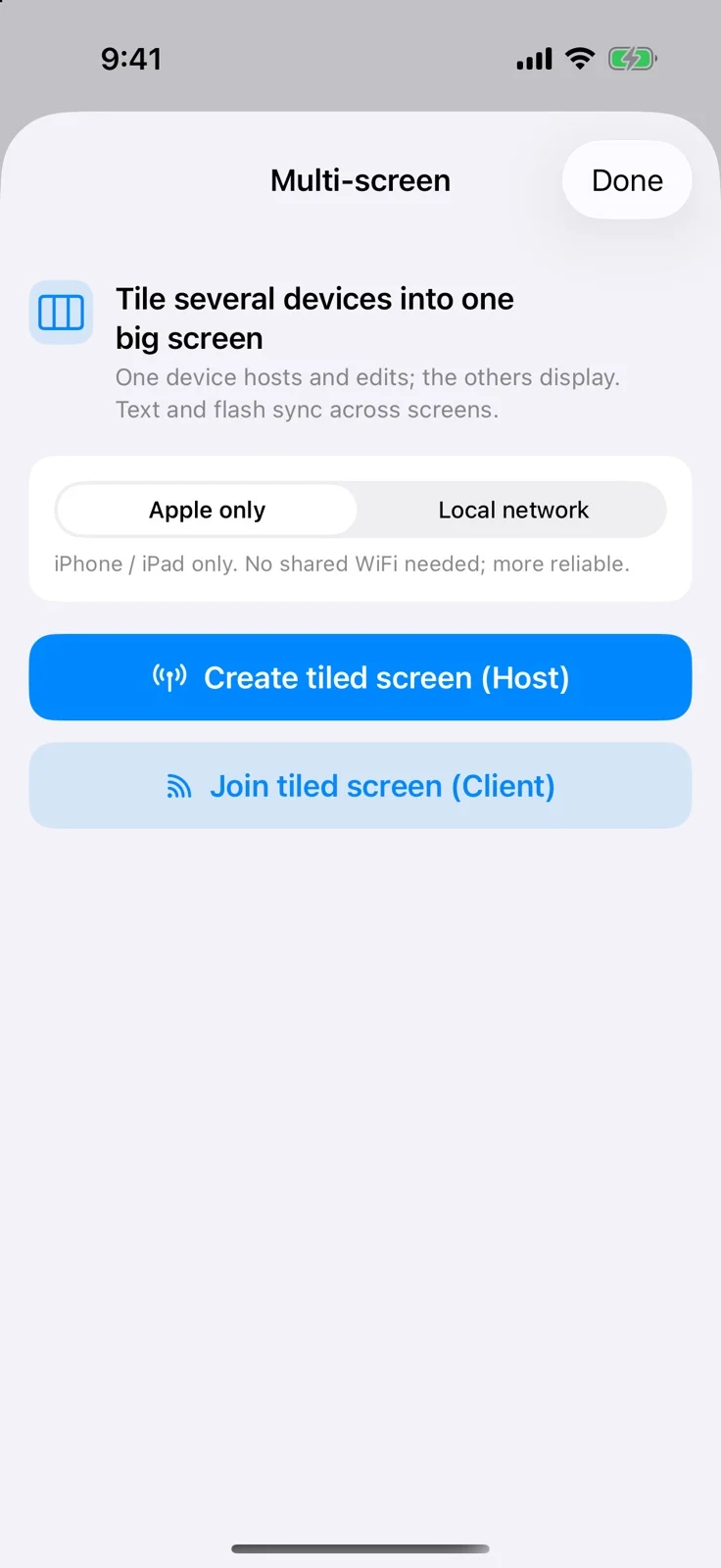
On the other device, open Multi-screen, select LAN mode and choose the join option. Select the first device under nearby hosts. Allow local network access if prompted.
Choose the join option on the second device Arrange the screens and start playback
On the host device, confirm that both screens are connected. Put them in the same left-to-right order as their physical positions, then start playback.

Example of a full-screen sign in landscape

Get ChromaBoard
iPhone / iPad